The sidebar splits into Library — the three kinds of audio own.audio handles — and On This Mac, which is about what’s stored here rather than what exists.
This guide is the tour of the first half. Each section works the same way: search at the top, a way to change what you’re looking at, and a grid you can switch to a list.
Audiobooks
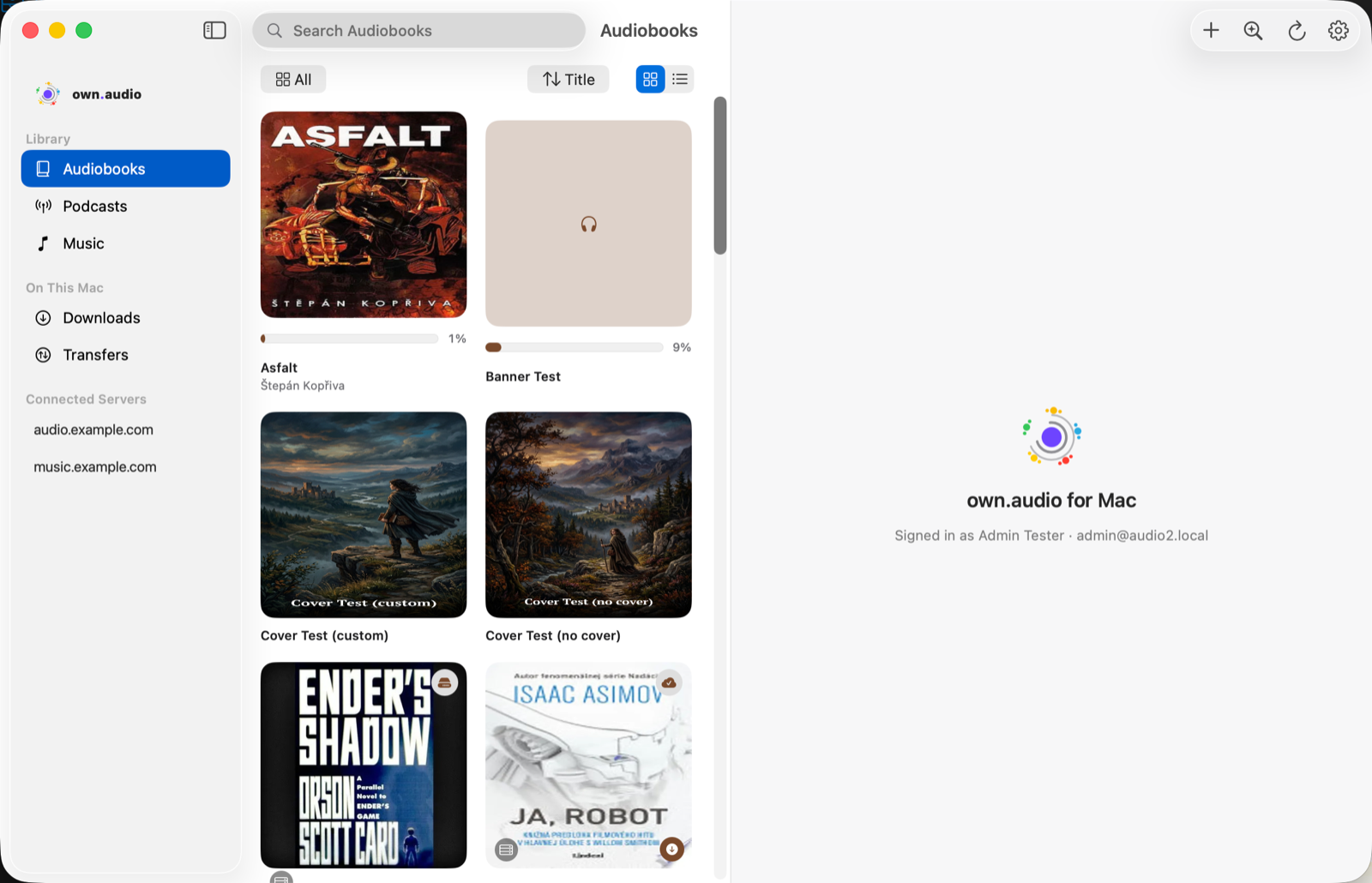
Along the top: search, a filter for narrowing what’s shown, a sort control (title, and other orders), and the grid / list toggle. A book you’ve started keeps a progress bar under its cover with a percentage.
The + button in the toolbar adds a book from files on your Mac — drag a folder of chapters onto the grid and it works the same way.
Podcasts
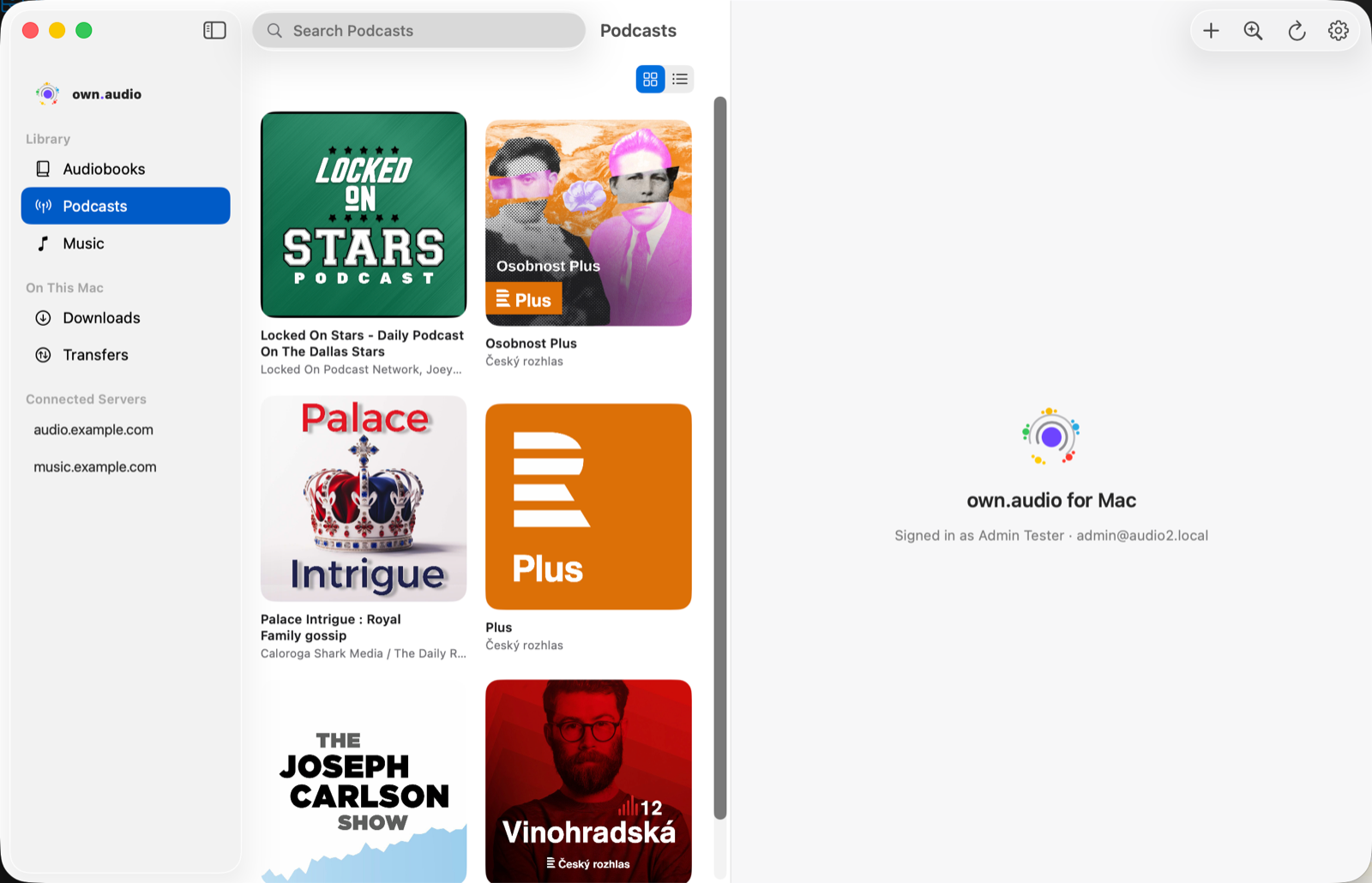
+ subscribes to a feed. Selecting a show opens its episodes on the right, each with its own play and download control, and the show itself has Refresh and Unsubscribe.
Podcast episodes have their own per-feed download rules, set on the feed. They are deliberately not covered by the mirror rules described in the rest of these guides — if you’re wondering why a podcast didn’t download when your mirror rules said everything, that’s why.
Music
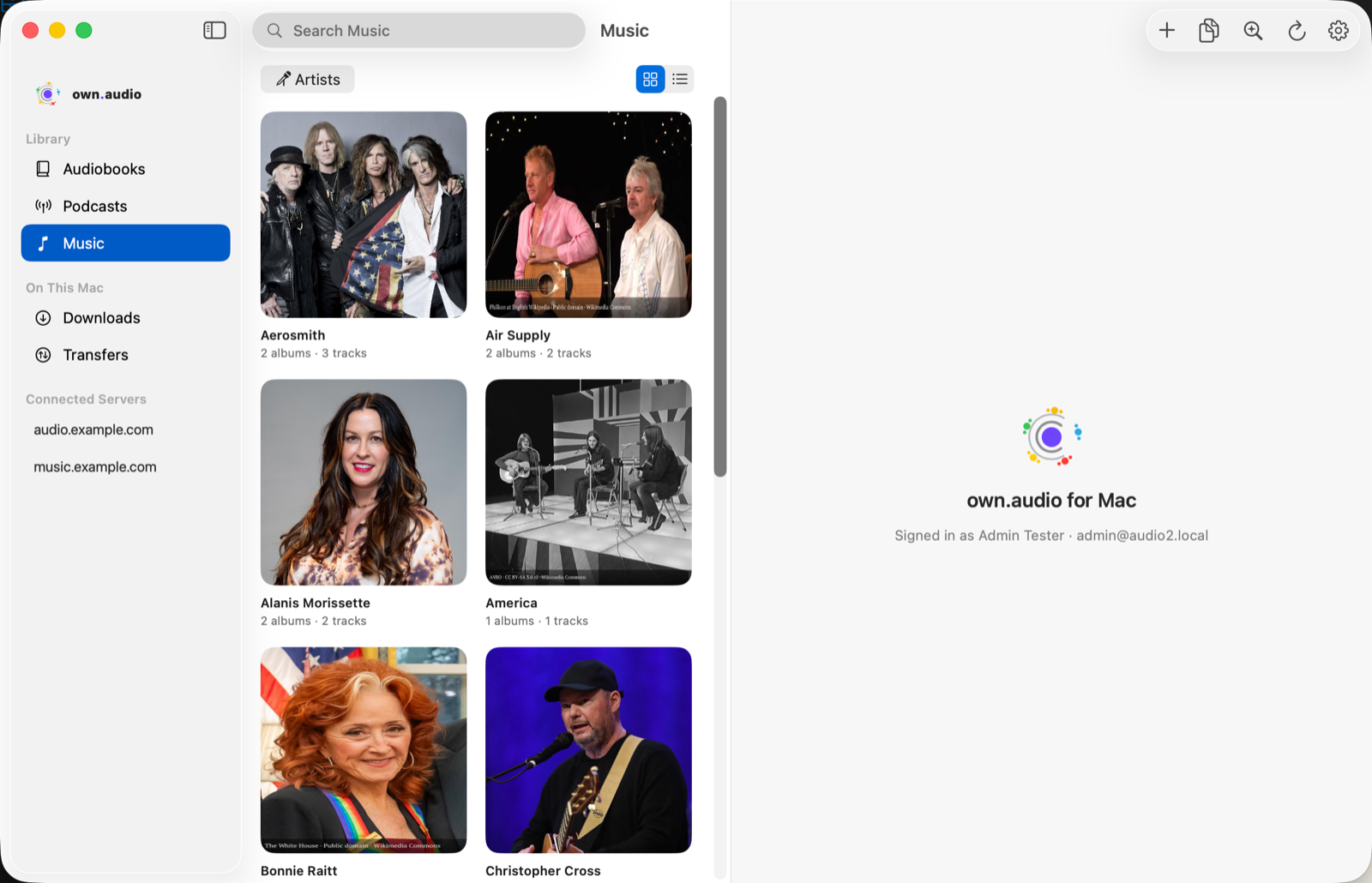
The control at the top left switches how music is grouped: Artists, Albums, Genres or Playlists. Each card shows how many albums and tracks it holds.
Two toolbar buttons here that the other sections don’t have: + to add tracks from files, and a find-duplicates tool for when the same song has arrived twice from different sources.
What the marks on a cover mean
A cover can carry small badges. They’re all about availability, never about restriction:
- a download mark — this is stored on this Mac
- a favourite mark — you’ve starred it (and mirror rules can be set to keep only favourites)
- a people mark — this one is shared with your family rather than private to you
Private items carry no badge at all. There’s nothing locked in own.audio: “private” means “not shared with the family”, not a security boundary.
Where the rest lives
On This Mac → Downloads is everything stored here, with the tools for looking after it. On This Mac → Transfers is what’s moving right now.