Mirror rules answer one question: of everything in the household library, which parts should this particular Mac keep?
The useful thing about the rules screen is that it tells you the real answer before you commit — an exact item count and size for the choice you’re looking at.
Set the rules
- Open Settings (
⌘,) and pick the Mirror tab. - Under Audiobooks, choose what this Mac should keep:
- Everything — the whole audiobook library.
- Favorites Only — just the books marked as favourites.
- Pinned Only — just the books you’ve explicitly pinned (see below).
- Nothing — no automatic audiobook downloads.
- Do the same under Music. The options are the same, except the second one is Playlists Only — tracks that are in at least one playlist.
- Watch What This Will Download. It updates as you change the pickers.
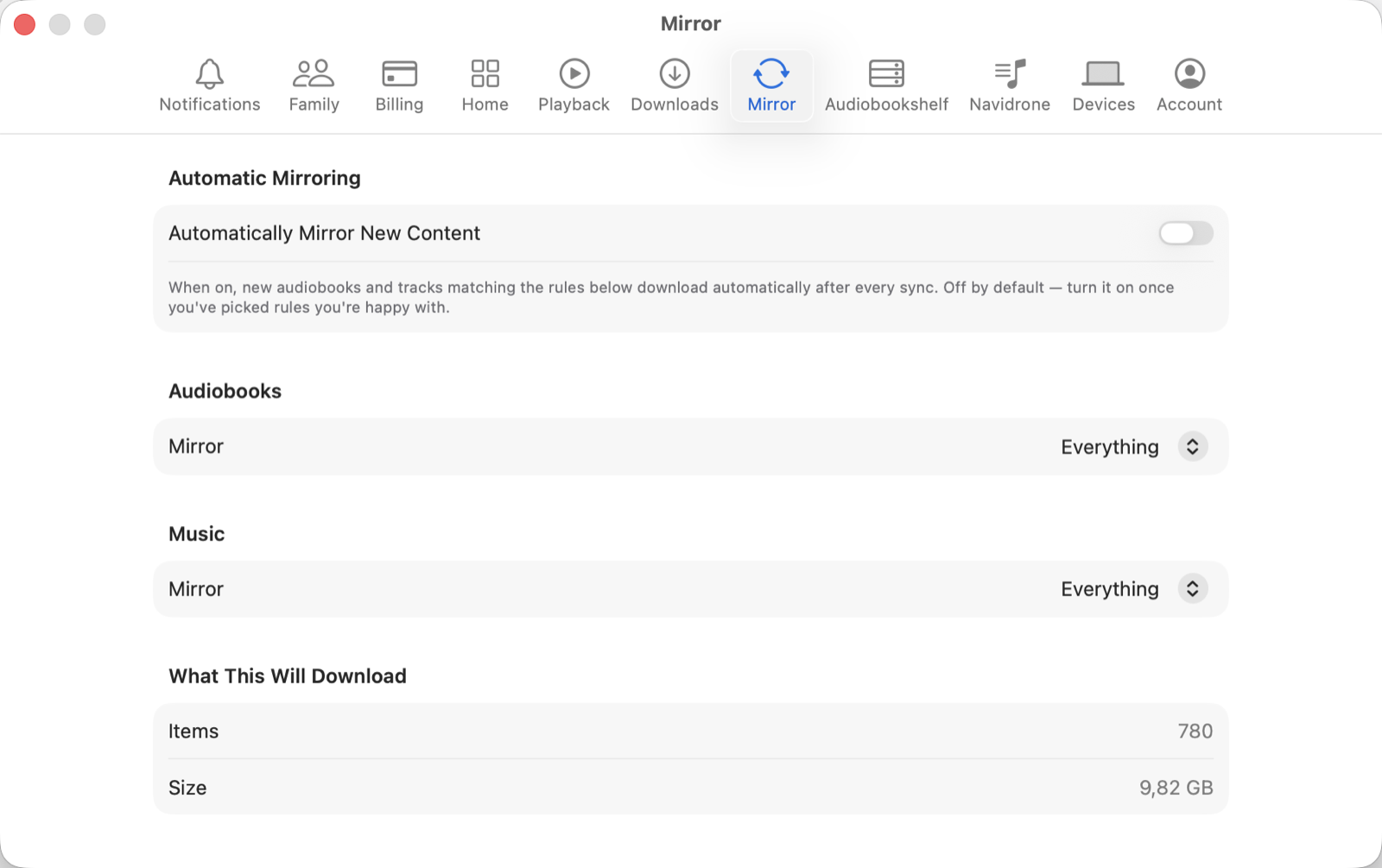
That number is the whole point. Everything sounds harmless until the preview says 9.82 GB. Change a picker and the figure changes with it, so you can find a rule you’re actually happy with before anything downloads.
Turn on automatic mirroring
The rules describe what should be here. The toggle decides whether the Mac acts on them without being asked.
- Still on the Mirror tab, switch on Automatically Mirror New Content.
- From then on, anything new that matches your rules downloads after each sync.
It’s off by default on purpose. Pick rules first, confirm the preview, then switch it on — that order means the first automatic run is never a surprise.
Pin the things that must never leave
Pinning is how you say this one stays, regardless. A pinned item is kept even when your rules would otherwise let it go, and it’s protected from space limits.
To pin something, open Downloads → Storage, find it in the list, and click the pin button on its row. See Manage the space it uses for the full screen.
Pinning works for audiobooks and individual tracks. Podcast episodes can’t be pinned — they aren’t part of the mirror rules at all.
Mirror everything, once
If you just want a full copy now rather than a standing rule:
- Go to Downloads in the sidebar.
- Click Mirror Everything… in the toolbar.
- A preflight sheet shows the item count and total size, and warns you if there isn’t enough free space.
- Confirm, and it starts. You can follow it on the Transfers screen.
If it stops on its own
Mirroring pauses when free space drops below 5 GB, and resumes when space frees up. That floor isn’t adjustable. It exists so a full library never fills the disk out from under you — the Transfers screen says Paused — not enough free space rather than failing silently.
Next: See what’s transferring.