The library folder is a normal folder, so sooner or later someone copies something into it directly — a batch of ripped CDs, an old audiobook from a backup drive.
Files put there in Finder aren’t part of your library yet. The app can find them and offer to adopt them, but it never does so on its own: a scan only ever detects and offers.
Run a scan
- Go to Downloads in the sidebar.
- Click Scan for New Files in the toolbar.
The app walks the library folder and lists anything it doesn’t already know about, grouped by the folder it’s in — because a folder of files is almost always one album or one book.
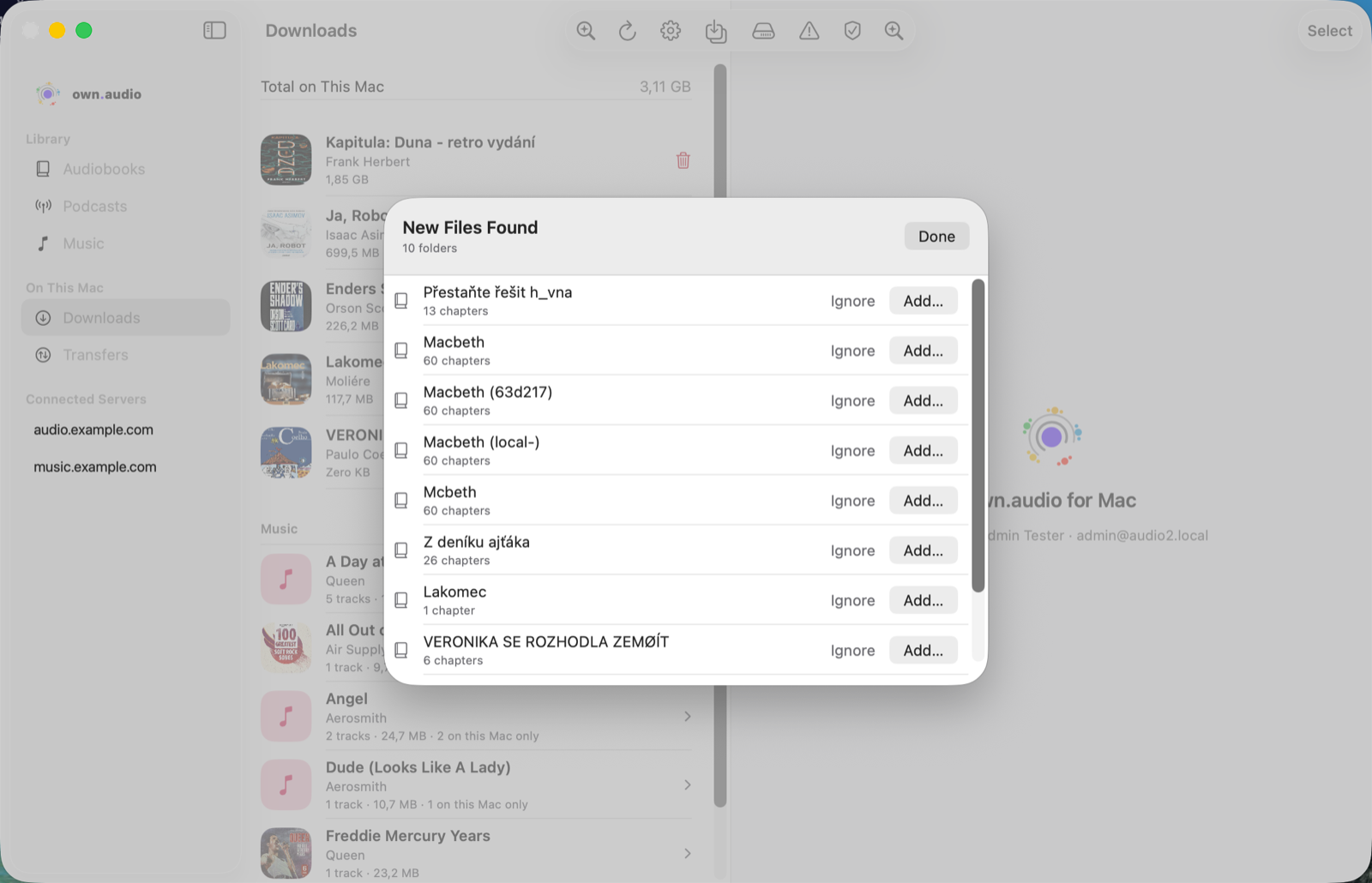
You’ll also see a quiet count in the toolbar at launch — N new in library folder — so you find out without having to remember to check.
Add what you want
Click Add… on a row and pick where it should live:
- Local Only — keep it on this Mac and nowhere else. Nothing is uploaded. It shows as On this Mac only from then on.
- Upload to Cloud — send it to your library so every device can reach it, and don’t keep a local copy here.
- Both — upload it and keep the copy that’s already on this Mac.
Both does the sensible thing with the file you already have: it uploads it, then keeps that same file in place rather than downloading a second copy back. Nothing is transferred twice.
Ignore what you don’t
Ignore hides a row from future scans without deleting anything. It’s for the things that live in the folder legitimately but aren’t part of your library — a podcast you keep separately, some working files.
Ignoring is reversible: the file stays exactly where it is, and it can be un-ignored later.
Two cases worth knowing
Files inside a book you already have. If someone drops an extra chapter into an existing book’s folder, the scan finds it and says so — but marks it as something it can’t add, with Ignore as the only option. own.audio has no way to add a file to a book that already exists, so rather than silently importing it as a separate one-file book, it names the situation and leaves it alone.
Tracks over 100 MB. These can’t be uploaded yet. A scan will still find such a file and you can add it as Local Only, but choosing to upload reports a clear “too large” message rather than failing in a way that looks like a network problem.
What a scan will never do
- It won’t upload anything you didn’t pick.
- It won’t delete or move anything you didn’t ask it to.
- It won’t touch files it already knows about, or anything under the app’s own working folder.