Transfers is the answer to “is it doing anything, and why is the internet slow?”. Everything moving between this Mac and your library shows up here.
Open it from On This Mac → Transfers in the sidebar.
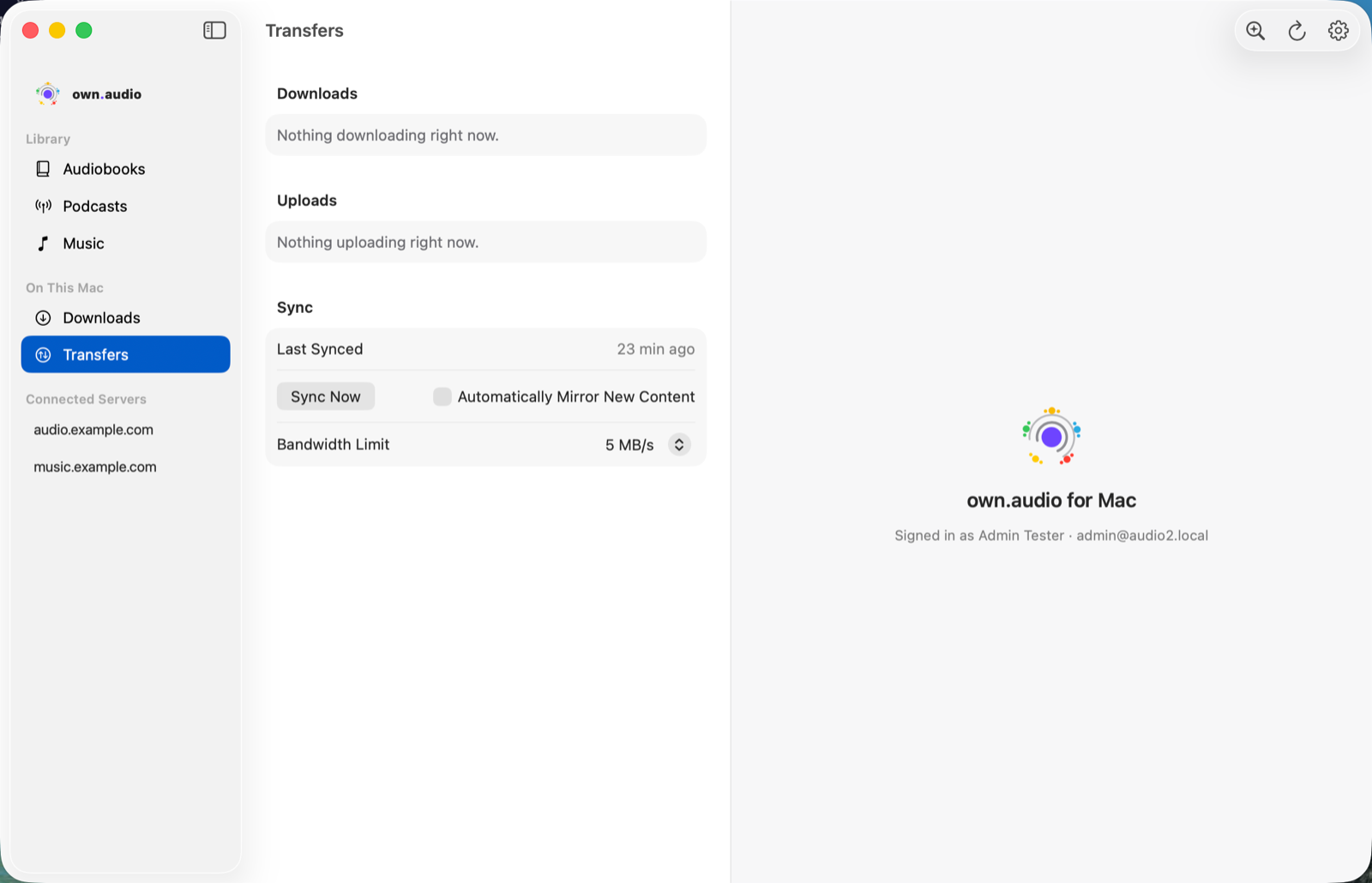
The three sections
Downloads shows a running mirror job plus any single downloads you’ve asked for. The mirror job appears as one row with overall progress — click it for the per-item view, where you can pause, resume, retry a failed item, or cancel the whole job.
Uploads shows anything going the other way: files you’ve added, or an import from a connected server. Finished rows stay until you dismiss them, so a failure doesn’t vanish before you notice it.
Sync shows when the library last synced successfully, a Sync Now button, and the same Automatically Mirror New Content switch as the Mirror settings tab — because “sync found new things” and “the Mac downloaded them” are the same story, and it’s easier to reason about when both are in front of you.
Limit how much bandwidth it uses
A full mirror will happily use the whole connection. If someone else is on a call:
- On the Transfers screen, find Bandwidth Limit in the Sync section.
- Pick a cap — 1, 2, 5, 10 or 20 MB/s, or No Limit.
The change applies to mirror transfers straight away; you don’t need to restart anything or visit Settings.
When something goes wrong
The mirror job says why it isn’t running rather than just showing a stalled bar:
- Paused — waiting for network — offline, or on a connection the app was told to avoid. It resumes by itself.
- Paused — not enough free space — under the 5 GB floor. Free some space and it continues.
- Failed — checksum mismatch — the downloaded file didn’t match the server’s copy. It retries once from scratch; a second mismatch stops and reports rather than looping.
- Failed — file too large to upload right now — a track above the 100 MB upload limit. This one won’t succeed on retry, so it’s reported plainly instead of retrying forever.
What it can’t do
There’s no “pause everything” button. The mirror job can be paused and resumed; individual downloads and uploads can only be cancelled outright, because neither has a way to stop half-way and pick up later. Rather than a button that quietly does one thing and not the others, the app only offers the control that’s real.
Next: Manage the space it uses.