If you already run Audiobookshelf, Navidrome or another OpenSubsonic-compatible server, own.audio can connect to it. Those servers appear in the sidebar as their own spaces, next to your own.audio library but separate from it.
The relationship is deliberately one-way: you can browse those servers and bring things into own.audio. Nothing own.audio does writes back to them.
Connect one
- Open Settings (
⌘,) and pick Audiobookshelf or Navidrone. - Under Add Another Server, fill in the address, your username, and your password.
- Click Add Server.
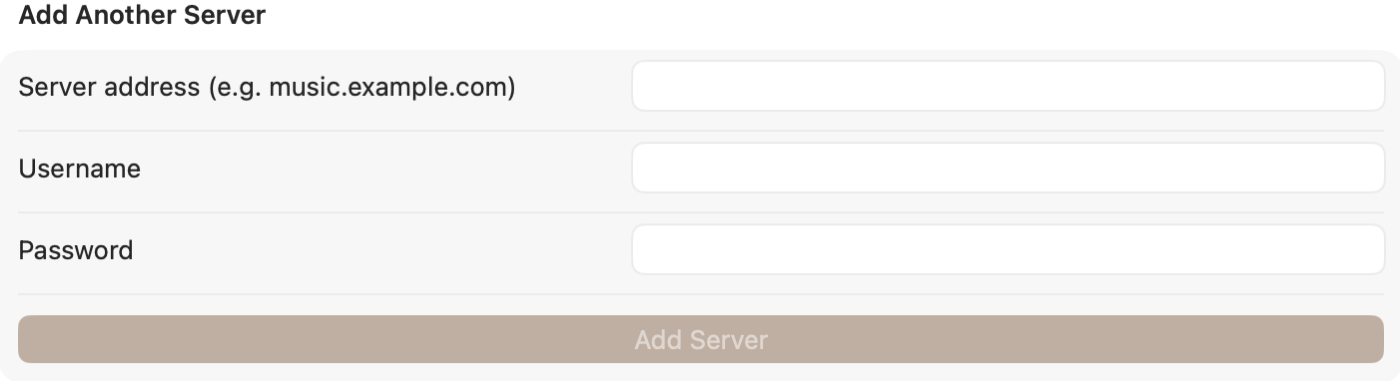
An existing connection shows above that, with its name and address, a Check Connection button for when something seems wrong, and Disconnect.
You can connect more than one of each. Each gets its own row in the sidebar under Connected Servers.
Browse it
Select a server in the sidebar to browse it. This is a live view of that server, not a copy — nothing has been imported yet, and nothing is stored on your Mac by looking.
Bring something into own.audio
Right-click an item and choose Add to own.audio Library…. You’ll be asked where it should end up:
- Local Only — fetch it to this Mac and keep it here. Nothing is uploaded, and it won’t appear on your other devices.
- Upload to Cloud — put it in your own.audio library so every device can reach it.
- Both — upload it, and keep the local copy too.
For music you can do this a whole artist, album or playlist at a time, not just track by track.
Bothdoesn’t fetch twice. The file is pulled from your server once, uploaded from that copy, and then that same file is kept as the local one — so a large import doesn’t move the same bytes over the network two times.
Two things that protect you from mess
Duplicates. If own.audio thinks it already has something — matched loosely on title and artist or author — the import action is hidden for that item, and a batch import warns you before it runs. The match is a guess, so it’s a warning rather than a block.
Interruptions. Uploading imports run on the same job queue the mirror uses, so a dropped connection part-way through a large import doesn’t mean starting again. You can watch it on the Transfers screen.
Current limits
- Audiobookshelf podcast libraries aren’t importable — book libraries only.
- Tracks above 100 MB can’t be uploaded yet. Such a file can still be brought in as Local Only; choosing to upload reports a clear “too large” message rather than failing obscurely.
- There’s no whole-server “import everything” button yet. Importing is per item, per album, per artist or per playlist.
Next: What your library costs.