A mirrored library grows. The Storage screen is where you see what’s actually using the disk and do something about it.
Open Downloads in the sidebar, then click Storage in the toolbar.
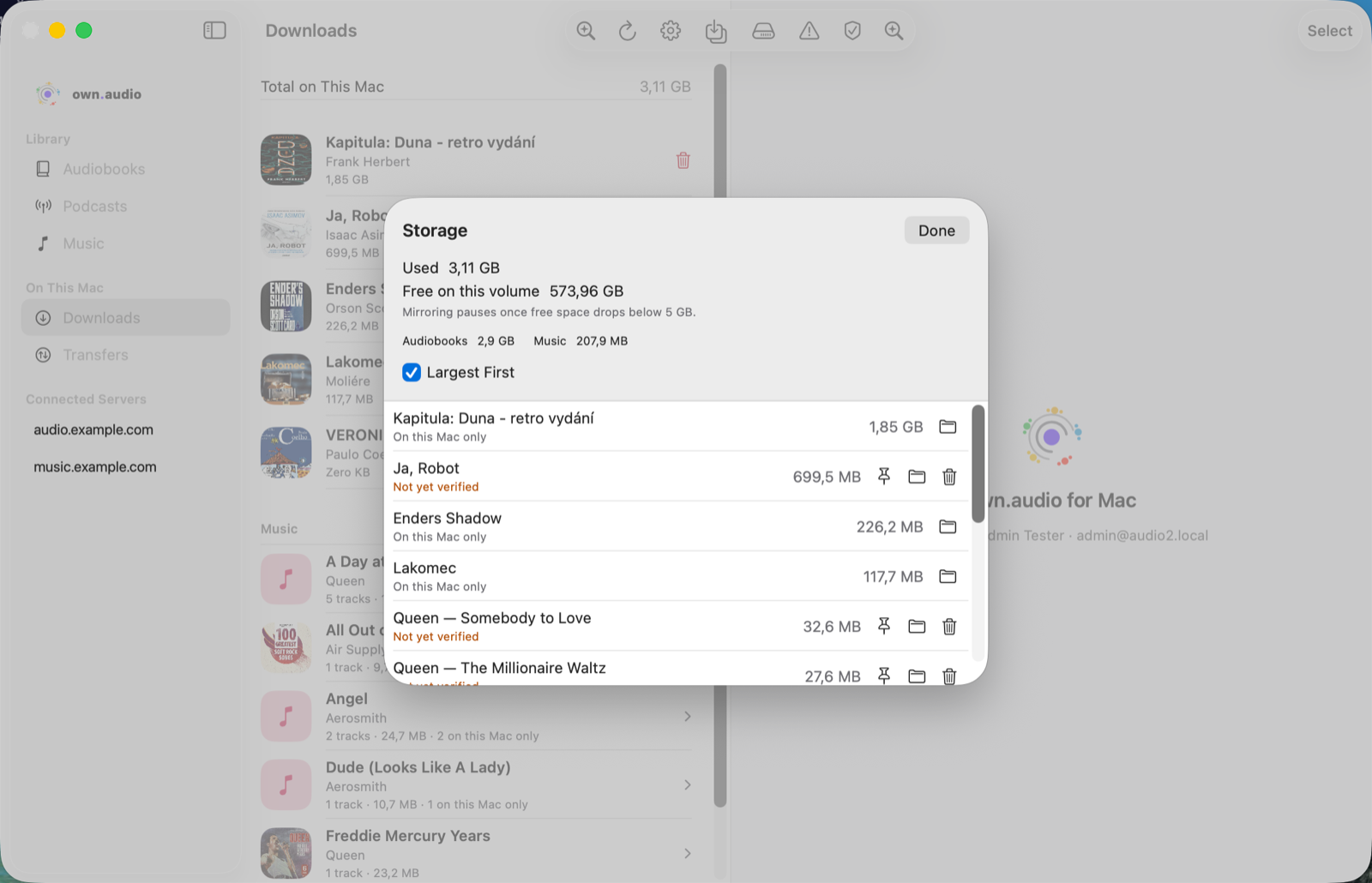
Reading the screen
Used is everything own.audio is storing here, including Local Only files. It matches the Total on This Mac figure on the Downloads screen behind it.
Free on this volume is the disk’s own free space, with a reminder that mirroring pauses below 5 GB.
Below that, a total per kind, then every item largest first. Uncheck Largest First to flip the order.
Two labels are worth knowing:
- On this Mac only — a Local Only file. There’s no cloud copy, so own.audio will never remove it for you, and it deliberately has no remove button here. Deleting one is a permanent deletion, so it lives on the Downloads screen where it’s labelled as exactly that.
- Not yet verified — the file is here, but hasn’t been checked against the server’s own checksum yet. Not a problem; it just means the check hasn’t run. Verify Library in the Downloads toolbar runs it on demand.
Free up space now
For anything with a cloud copy, each row has three buttons:
- Pin — keep this no matter what. Protects it from every rule below.
- Reveal in Finder — open the actual file, in the actual folder.
- Remove — delete the local copy. It asks first, and tells you how much you’ll get back.
Removing is safe in the sense that matters: the item stays in your library, and can be mirrored again later. It’s just not taking up room on this Mac any more.
Set limits that clean up on their own
If you’d rather not do this by hand, Settings → Downloads has limits that run automatically. All are off by default.
- Maximum Size — a ceiling for everything own.audio stores. Over it, the app removes least-recently-played items until the rest fit.
- Remove After — drop downloads a set number of days after they finish downloading. Note: that’s from when the download finished, not from when you last listened.
Three things are always protected from these limits, and always will be: whatever is playing right now, anything you’ve pinned, and anything your mirror rules still want. Local Only files aren’t touched either — there’s nowhere to re-fetch them from.
Why “least recently played” and not “oldest”? A book downloaded a year ago and listened to last week is more useful than one downloaded yesterday and never opened. The size limit removes by when you last listened, not by when it arrived.
Check the files are really there
Verify Library in the Downloads toolbar walks everything it has a record of and checks the file is still on disk. Anything moved or deleted in Finder gets flagged so you can re-download it or stop tracking it, instead of finding out mid-journey.